


Overview
In some cases, customers reported antivirus real-time scanning causing a massive amount of downloading which burdens the M-Files server. In some scenarios, it is not possible to control the client machine settings in such a way that the M-Files virtual drive could be excluded from the antivirus scanner targets.An improvement request with ID162188 has been created to add a new client setting to Advanced Vault Settings that enables blacklisting antivirus scanner process names. The blacklisted process names are then written into the registry of the client machine.
Solution
The improvement is implemented in version M-Files Online April ’22 Update (22.4.11321.4) and newer.See our release notes here: https://www.m-files.com/customers/m-files-online-release-notes/
Note: Manage Clients Centrally must be turned on for this to work as expected.
The path to this setting is Configurations > Advanced Vault Settings > Configuration > Client.
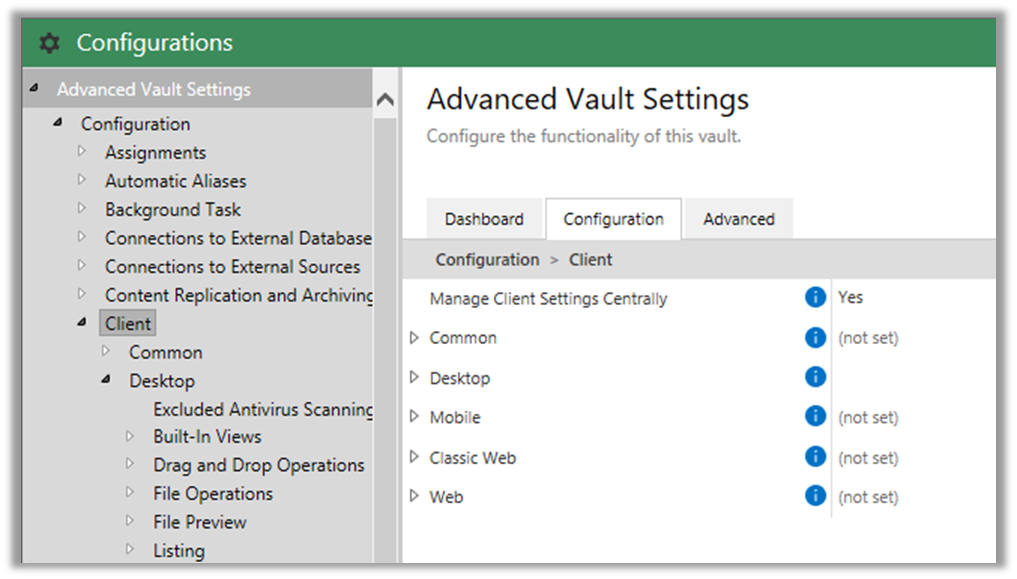
The setting is in Advanced Vault Settings > Client > Desktop > Excluded Antivirus Scanning Processes > Click on Add Process and type in the name of the process.
Once the exclusions are set up, it should look something like the screenshot below. The processes listed below are just examples. The name of the process must be the correct name of the antivirus process.
After setting the exclusions, the vault may need to be restarted and end users logout / login for them to take effect. This is always a good practice after making significant changes to Advanced Vault Settings.



